
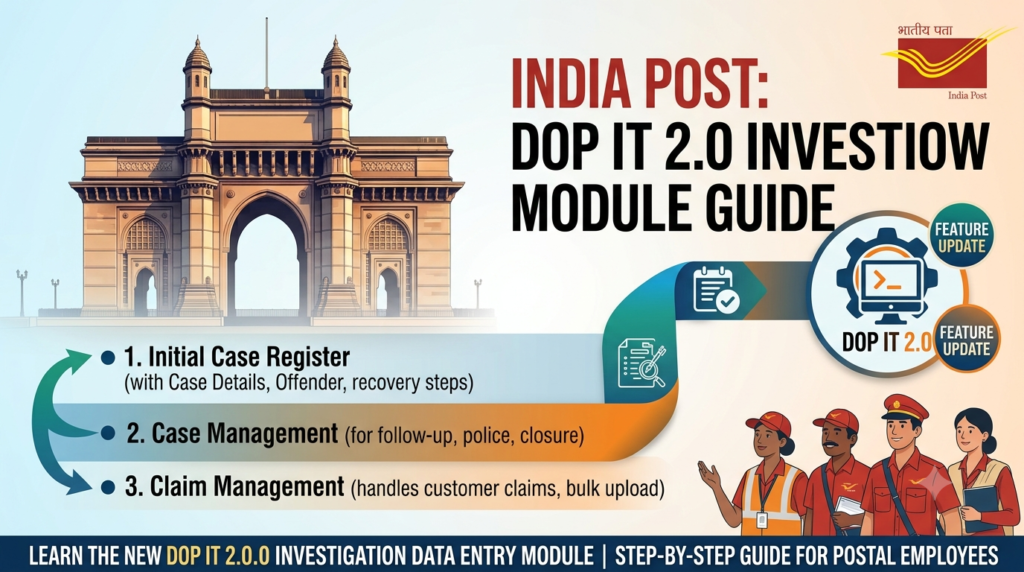
SEO Title: India Post Investigation Data Entry Module (DOP IT 2.0) – Step-by-Step Guide Learn how the new India Post Investigation Data Entry Module works on DOP IT 2.0. A simple guide to Initial Case Register, Case Management and Claim Management for GDS, MTS, Postman and PA/SA staff.
URL Slug: /india-post-investigation-data-entry-module-dop-it-2
Focus Keyphrase: India Post Investigation Data Entry Module
If you work in India Post, you already know that systems keep changing. The Department of Posts has shared a new training on the Investigation Data Entry Module, which is part of the DOP IT 2.0 portal.
This guide explains the module in plain words. It is useful for supervisors, inspectors and anyone preparing for an India Post Departmental Exam, whether it is GDS to MTS, GDS to Postman, MTS to PA or Postman to PA. Questions on new departmental systems and India Post current affairs often show up in these exams, so it pays to know this well.
What Is the Investigation Data Entry Module?
It is a section of the DOP IT 2.0 portal where fraud and investigation cases are recorded online. You can find it under Investigation → Investigation Management → Data Entry in the top menu.
The module is split into three main parts:
- Initial Case Register: basic details of the case, offenders and money involved
- Case Management: police complaint, recovery, inquiry and closure
- Claim Management: claims from customers affected by the fraud
Let’s look at each one.
Part 1: Initial Case Register
This is where a case is first entered. It has six simple steps shown as tabs at the top of the screen.
Step 1: Old Case Registration (Case Details)
Here you fill in the basic facts of the case:
- Old Case File Number
- Fraud Office Name and Fraud Office Code
- Case Type, then Fraud Type and Scheme (these open only after you pick the Case Type)
- Source of Detection and Date of Detection
- Directorate, CO (Circle Office) and RO (Regional Office) Case Mark, if applicable
- Brief history of the case or detailed modus operandi
- How the case came to light
- Lead Investigator details and Approval Authority
The training slide makes a clear point: the history of the case needs to be factually correct. Take your time with this box.
Step 2: Offender
This tab records who was involved. Key fields include:
- Offender Type: Primary Offender or Subsidiary Offender
- Offender Category: Dept, GDS, Agent or Outsider
- Employee ID, Name, Designation and Cadre
- Office of working and designation during the fraud period
- Date of retirement and whether the person is deceased
- Number of accounts frozen and total balance
- Past record: was the person involved in fraud before, and was any punishment (Major or Minor) given
- Lapses in brief
You can add more than one offender. All added offenders show up in a list at the bottom, where you can view or edit them.
Step 3: Additional Office Details
Used when more than one office is linked to the case.
Step 4 & 5: PWV1 and PWV2 (Past Work Verification)
This is where you record verification of the offender’s past work. You pick a category from a long list, which includes:
- Savings Bank, RD, TD, MIS, PPF, SCSS, SSA
- Cash and Stamps, Franking Machine
- MGNREGA, ATM, IPPB, PLI and RPLI
- Social Security Schemes, PRS and CSC
Step 6: Amount Involved and Recovery
This tab keeps track of the money side:
- Total permanent and temporary fraud amount
- Normal interest and penal interest
- Total loss sustained (the system adds this up)
- Principal, interest and penal interest recovered
- Amount still unrecovered
As per the training, the recovered amount is currently filled through other parts of the module. Once it is updated there, it can be edited here as well.
Part 2: Case Management
After the case is registered, all follow-up action goes here. The sections are:
- Police Complaint: FIR number, police station, registration date and court case details
- Revenue Recovery
- ED Case
- DLI/CLI
- Review Authority: separate boxes for observations from the RO and CO, with remedial action suggested and a document upload option
- Systemic Issue: gaps in the system that allowed the fraud
- Other Action on Offender
- Statistical Closure / Write Off
Each section has a Save or Update button, and saved records show in a table below the form.
Part 3: Claim Management
This part handles claims made by customers who lost money due to the fraud. It has two tabs: Claim Register and Claim Details.
Fields include:
- Claimant name and date of claim
- Claim Type: Savings Bank, Certificates, Mails, Money Order, Insurance or Bill Payment
- Claim amount and sanctioned amount
- Payment method and account number
- Sanction order upload (PDF)
- Sanctioning authority, Post ID and designation
There is also an option for bulk upload of claims, which saves time when there are many customers involved.
Why This Matters for Your Departmental Exam
If you are doing GDS to MTS preparation, studying for the Postman to PA departmental exam, or taking MTS to PA online classes, topics like fraud prevention, schemes and new IT systems are important. Knowing how investigations are recorded also helps you understand:
- Which schemes are most prone to fraud
- The role of GDS, departmental staff and agents in a case
- Rules on recovery, penal interest and claims
A good habit is to pair topics like this with India Post previous year question papers and India Post mock tests, so you can see how such questions are asked.
Quick Recap
- The module lives in the DOP IT 2.0 portal under Investigation
- Initial Case Register has 6 steps: Case Details, Offender, Additional Office, PWV1, PWV2 and Amount & Recovery
- Case Management covers police, recovery, inquiry, review and closure
- Claim Management handles customer claims, with bulk upload support
- Always enter facts carefully and correctly
Frequently Asked Questions
Where is the Investigation Data Entry Module in DOP IT 2.0?
Log in, open the Investigation menu, go to Investigation Management and click Data Entry.
What does PWV mean in the module?
PWV stands for Past Work Verification. It is used to check the offender’s earlier transactions across different schemes.
Who can be added as an offender?
Departmental staff, GDS, agents and outsiders can all be recorded as offenders.
Is this topic useful for the GDS to MTS exam?
Yes. Questions on India Post systems, schemes and procedures can appear in GDS to MTS, GDS to Postman and PA/SA departmental exams.