
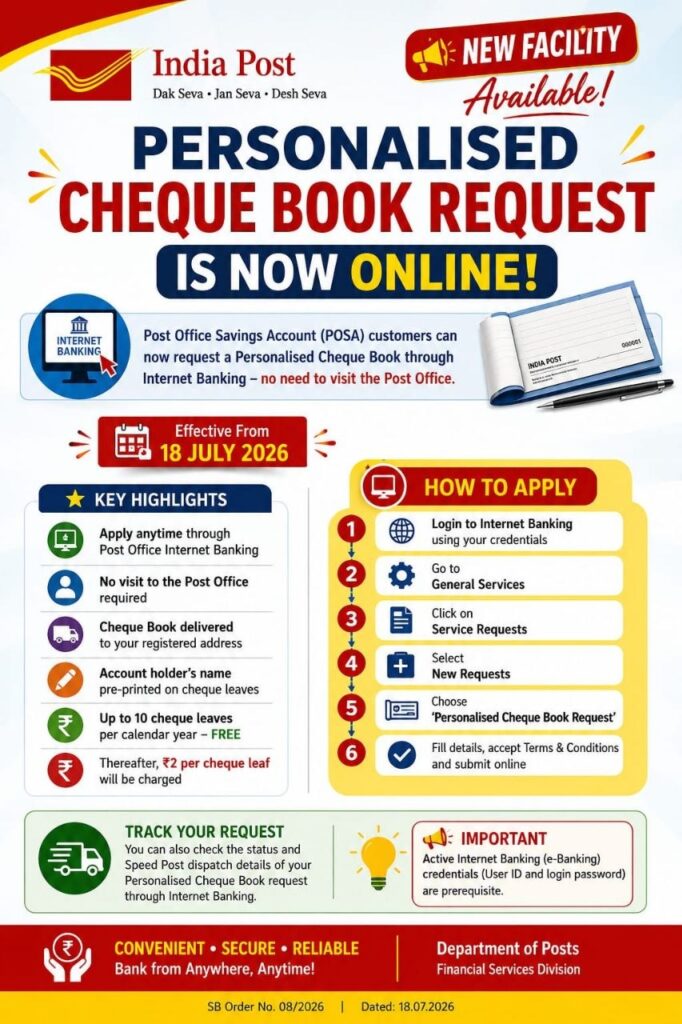
The Department of Posts, Financial Services Division, has issued SB Order No. 08/2026, introducing an online request facility for Personalized Cheque Book (PCB) through Post Office Internet Banking. This is a useful update for all Post Office Savings Account (POSA) customers. Below is the full update explained in simple points.
📌 Order Details
- Order No.: SB Order No. 08/2026
- File No.: FS-POSB/6/2025-FS-DOP-Part(1)
- Issued By: Department of Posts, Financial Services Division, Dak Bhawan, New Delhi
- Date: 18.07.2026
- Subject: Introduction of online request facility for Personalized Cheque Book (PCB) through Internet Banking
- Reference: SB Order No. 05/2026 dated 08.05.2026 (original PCB facility for POSA customers)
- Effective From: 18.07.2026
- Sent To: All Heads of Circles/Regions
💡 What Has Changed
- Earlier, PCB requests could only be submitted at the Post Office counter.
- Now, POSA customers with active Internet Banking access can request a Personalized Cheque Book online, without visiting the Post Office.
- The account holder’s name will be pre-printed on the cheque leaves.
- The cheque book will be delivered free of cost to the registered address of the primary account holder.
💰 Charges for Personalized Cheque Book
- No charges for up to 10 cheque leaves per calendar year.
- After 10 leaves, a charge of ₹2 per cheque leaf applies, debited automatically from the selected savings account.
🖥️ Step-by-Step Process to Request PCB Online
- Log in to Internet Banking using your credentials.
- Click on General Services → Service Requests → New Requests.
- Click on “Personalised Cheque Book request”.
- “New Requests” will be selected by default under Option.
- Select “Request Cheque Book” under Type of Operation.
- Click on “GO”.
- Select the Savings Account Number from the list (charges will be auto-debited from this account, if applicable).
- The default number of cheques is 10.
- Click “Click Here” to read the Terms and Conditions, then tick the checkbox to confirm agreement.
- Click “Submit Online”.
✅ Request Confirmation Screen Details
Once submitted, the confirmation page will display:
- Account holder’s name (as printed on the cheque leaves)
- Address where the cheque book will be dispatched
- Account type
- Joint account holder’s name (for joint accounts)
- Request date
- Registered mobile number
After entering the transaction password, the request gets authenticated, and a Cyber Receipt with a reference ID is generated.
🔍 How to Check PCB Request Status Online
- Click on General Services → Service Requests → New Requests.
- Click on “Personalised Cheque Book request”.
- Select “PCB status inquiry” under Type of Operation.
- Click on “GO”.
- Select the Savings Account Number.
- Enter the Request Date (DD-MM-YYYY format).
The Request Confirmation screen will then show:
- Savings Account Number
- Begin Cheque Number
- Number of leaves
- Cheque Status – VERIFIED (before printing) or COMPLETED (after printing and dispatch)
- Dispatch date
- Dispatch number (Speed Post article number, trackable on the India Post website)
📮 Why This Matters for POSA Customers
- No more visiting the Post Office just to request a cheque book.
- Faster, digital, and transparent process with a trackable dispatch number.
- Free delivery to the registered address of the primary account holder.
- Useful for customers who already use Post Office Internet Banking regularly for other transactions.
🏢 Final Thoughts
SB Order No. 08/2026 is a good example of how India Post is continuing to digitize customer-facing banking services. If you are a POSA customer with Internet Banking access, you can now request your Personalized Cheque Book online, track its status, and get it delivered directly to your registered address — all without stepping into a Post Office.
Keep following official India Post Notifications and India Post Circulars for more such digital banking updates.