
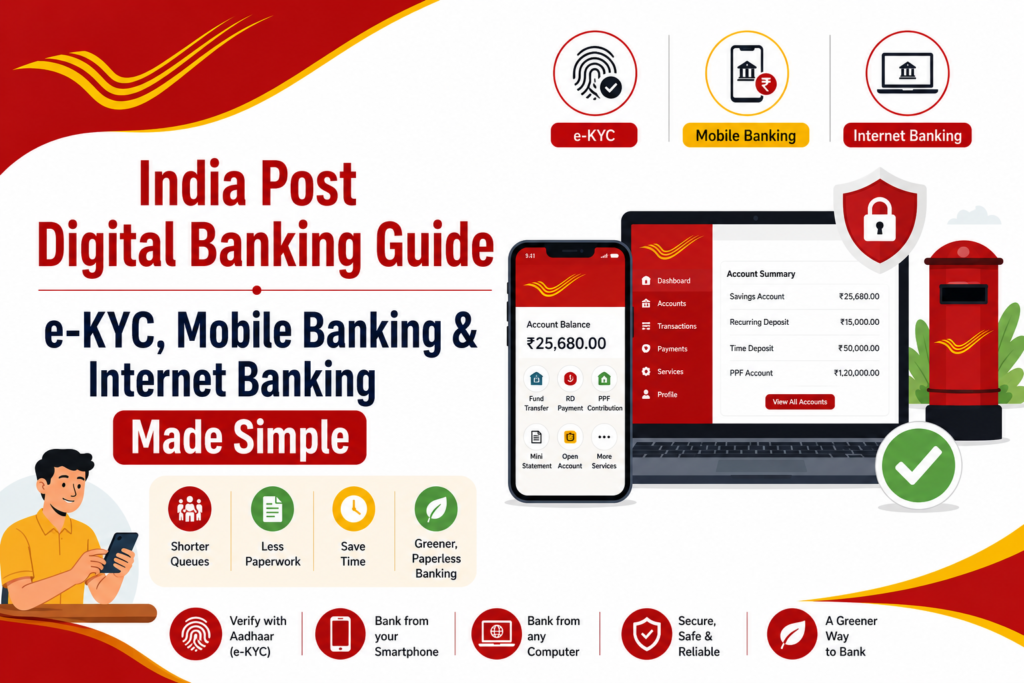
India Post is changing. The Post Office Savings Bank, also called POSB, is moving from paper forms to digital banking. This blog explains e-KYC, Mobile Banking, and Internet Banking in easy words. No technical terms. No confusion. Just simple steps.
This guide is useful for:
- India Post customers who want to bank from home
- Digital Saathi volunteers helping customers at the counter
- Anyone searching for India Post digital services information
- Students and readers preparing India Post GK or India Post Current Affairs topics
Why This Matters
Here is a simple fact. Out of every 100 POSB transactions, only 1 or 2 happen digitally. At private banks, more than 95 out of 100 transactions happen digitally. This is a big gap. India Post wants to close this gap. That is why the Digital Adoption Initiative exists.
Every customer who moves to digital banking means:
- Shorter queues at the post office
- Less paperwork
- More time for staff to handle work that only a post office counter can do
- A greener, paperless banking experience
The Three Pillars of Digital Banking
India Post’s digital push stands on three simple pillars.
- e-KYC: Verifies identity using Aadhaar. No physical paperwork needed.
- Mobile Banking: Banking from your own smartphone. Fast and simple.
- Internet Banking: Banking from a computer or browser. More features, more control.
What is e-KYC and Why Should You Use It
e-KYC means Electronic Know Your Customer. It uses your Aadhaar number to verify your identity digitally.
Here is why e-KYC helps you:
- Open a new account in minutes. This works for POSA, MIS, TD, KVP, NSC, RD, PPF and SCSS accounts.
- No physical forms needed for withdrawals up to ₹20,000.
- No physical forms needed for any deposit amount.
- You can still use paper-based banking if you prefer. e-KYC is optional, not forced.
- Existing customers can also convert old paper-based accounts into e-KYC accounts at any post office.
e-KYC Process: Step by Step
- The counter staff creates your e-KYC based CIF, or converts your existing account.
- A duplicate check happens using your Aadhaar, PAN, or mobile number.
- Your name, father or husband’s name, gender, date of birth, address, and photo are fetched directly from UIDAI.
- A few more mandatory details are filled to complete the account creation.
- No supervisor verification is needed. This saves time.
- All schemes except SSA can be opened as a single account through e-KYC.
If you have your Aadhaar number and Aadhaar-linked mobile number, this whole process takes just a few minutes at the counter.
Using Mobile Banking
The India Post Mobile Banking app puts everyday banking on your own phone. Here is what you can do.
1. Download, Registration and Activation
- Enter your basic details in the app.
- Verify using OTP.
- Set your MPIN and confirm it.
- Your account is usually activated within 24 hours.
2. Check Account Balance and Details
Works for Savings, RD, TD, PPF, and NSC accounts.
- Login to the app.
- Go to the Dashboard Account menu.
- Tap on the account you want to check.
3. View Transaction History and Mini Statement
- Go to Dashboard Accounts menu.
- Select the account.
- Tap Transaction History.
4. Fund Transfer Between Your Own or Linked Accounts
Move money between Savings and RD, or Savings and PPF.
- Login and go to Dashboard.
- Tap Transfer menu.
- Choose Self Fund Transfer, Payee Fund Transfer, or Outside Bank Transfer.
5. Pay Your RD Instalment
- Go to Dashboard.
- Tap Recurring Deposit Fund Transfer.
- Complete the payment.
6. PPF Subscription and Loan Payment
- Go to Dashboard.
- Tap PPF Fund Transfer.
- Choose Subscription or Loan Repayment.
7. Open an RD or TD Account
- Go to Dashboard.
- Tap Request menu.
- Select RD Account Open or TD Account Open.
8. Pay PLI or RPLI Premium
- Go to Dashboard.
- Tap Request menu.
- Select Pay PLI/RPLI Premium.
9. Request a New ATM Card or PIN
- Go to Dashboard.
- Tap Request menu.
- Select New ATM Card Request.
10. Stop or Revoke a Cheque
- Go to Dashboard.
- Tap Cheques menu.
- Select Stop or Revoke Cheque.
Using Internet Banking
Internet Banking works on a computer or browser. It offers more features than the mobile app.
1. First Login and Password Setup
- Click the activation link sent to your registered mobile number.
- Set your security questions.
- Set your login password and transaction password.
2. Dashboard, Profile, and Password Management
- The dashboard shows a snapshot of all your accounts.
- The My Profile section lets you update personal details.
- You can change your login or transaction password anytime.
3. Check Balance Across All Account Types
Works for Savings, RD, TD, MIS, SCSS, NSC, KVP, PPF, and SSA accounts.
- Click Accounts tab, then Account Summary.
- All your accounts appear with balance details.
- Click any account number for full details.
4. Transaction History and Mini Statement
- Login to Internet Banking.
- Go to Dashboard.
- Click Mini Statement or Transaction History link.
5. Fund Transfers
Move money between your own accounts, to third parties, or from Savings to RD, PPF, Loan-against-PPF, or SSA.
- Click Transactions tab.
- Choose the transfer type from the sidebar, such as RD Contribution.
- Fill the required details and confirm.
6. Open or Close RD and TD Accounts
- Click General Services, then Service Requests, then New Request.
- Select Open RD Account or Open TD Account.
- Fill details and submit.
7. PPF Deposit, Withdrawal, and Loan Repayment
- Click Transactions tab.
- Select PPF Contribution or Loan Repayment.
- Fill details and confirm.
8. SSA Deposit
- Click Transactions tab.
- Select SSA Contribution.
- Fill details and confirm.
9. Manage Payees
- Click Transactions, then Manage Payee.
- Add a third-party payee within India Post, or another bank payee.
- Confirm using OTP.
10. View and Stop Cheques
- Click General Services, then Service Requests, then New Request.
- Select Stop Cheque.
- Fill cheque details and submit.
11. General Services
Includes TDS inquiry, nominee updates, and complaint filing.
- For TDS, go to Accounts tab, then Tax Deducted at Source.
- For nominee updates, go to Accounts tab, then Update Nominee Details.
- For complaints, use the links at the bottom of the login page.
12. Download Interest Certificate
- Click Accounts tab, then Interest Certificate.
- Select the financial year.
- Submit to download the PDF.
13. Modify or Delete RD Standing Instructions
- Click Accounts tab, then RD Standing Instruction Deletion.
- Choose bulk deletion or individual account deletion.
- Follow the on-screen steps.
14. Extend TD, PPF, or SCSS Accounts
- Click General Services, then Service Requests, then New Request.
- Choose the account type you want to extend.
- Agree to terms and submit.
The Role of a Digital Saathi
A Digital Saathi is someone who helps other customers adopt digital banking. The process is simple, just five steps.
- Approach the customer in the queue.
- Ask if they have completed e-KYC, Mobile Banking, or Internet Banking.
- Explain the benefit in one line. For example: “Check your balance, pay your RD, transfer money, anytime, from anywhere.”
- Help them sign up. Assist with the form, submit it at the counter, and help download the app.
- Hand over the customer flyer before they leave.
This small five-step process is helping thousands of India Post customers move away from paper forms and long queues.
Why This is a Greener Way to Bank
Digital banking is not just fast. It is also environment friendly.
- No physical deposit or withdrawal slips for most transactions.
- No printed passbooks needed for every check-in.
- Less paper used at post office counters every single day.
- Digital records reduce physical file storage over time.
Every customer who switches to e-KYC, Mobile Banking, or Internet Banking is also making a small, real contribution to reducing paper waste.
Final Thoughts
India Post’s Digital Adoption Initiative is a simple idea with a big impact. e-KYC removes paperwork. Mobile Banking brings your bank to your phone. Internet Banking gives you full control from your computer. Together, they make Post Office Savings Bank services faster, easier, and greener for everyone.
If you are a POSB customer, ask your local post office about e-KYC, Mobile Banking, and Internet Banking today. It takes just a few minutes to set up, and it saves you time every single visit after that.